

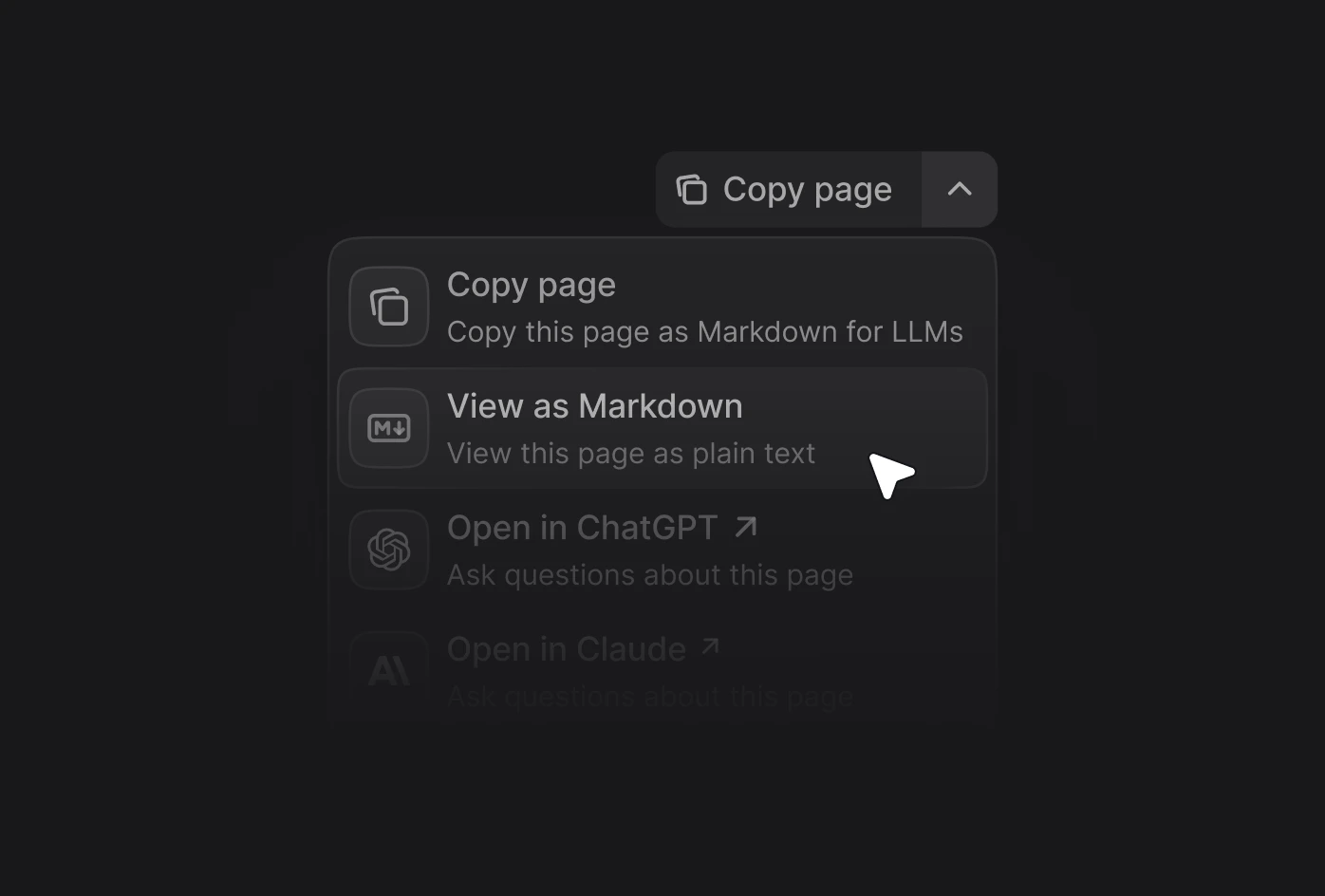
上下文菜单可快速访问经 AI 优化的内容,以及与主流 AI 工具的直接集成。用户在任意页面打开上下文菜单时,可以将内容复制为 AI 工具的 context,或在 ChatGPT、Claude、Perplexity、Google AI Studio、Grok、Devin、Windsurf,或你自定义的工具中直接开启对话,并自动加载你的文档作为 context。 上下文菜单包含多个预构建选项,你可以通过将其标识符添加到配置中来启用。Documentation Index
Fetch the complete documentation index at: https://mintlify-mintlify-cli-update-client-1777421729.mintlify.app/llms.txt
Use this file to discover all available pages before exploring further.
| Option | Identifier | Description |
|---|---|---|
| 复制页面 | copy | 将当前页面复制为 Markdown,以便作为 context 粘贴到 AI 工具中 |
| 以 Markdown 查看 | view | 以 Markdown 打开当前页面 |
| 询问助手 | assistant | 使用当前页面作为 context 打开 assistant |
| 在 ChatGPT 中打开 | chatgpt | 使用当前页面作为 context 创建一个 ChatGPT 对话 |
| 在 Claude 中打开 | claude | 使用当前页面作为 context 创建一个 Claude 对话 |
| 在 Perplexity 中打开 | perplexity | 使用当前页面作为 context 创建一个 Perplexity 对话 |
| 在 Grok 中打开 | grok | 使用当前页面作为 context 创建一个 Grok 对话 |
| 在 Google AI Studio 中打开 | aistudio | 使用当前页面作为 context 创建一个 Google AI Studio 对话 |
| 在 Devin 中打开 | devin | 使用当前页面作为 context 创建一个 Devin 会话 |
| 在 Windsurf 中打开 | windsurf | 使用当前页面作为 context 打开 Windsurf Cascade |
| 复制 MCP 服务器 URL | mcp | 将你的 MCP 服务器 URL 复制到剪贴板 |
| 复制 MCP 安装命令 | add-mcp | 复制用于安装 MCP 服务器的 npx add-mcp 命令 |
| 连接到 Cursor | cursor | 在 Cursor 中安装你托管的 MCP 服务器 |
| 连接到 VS Code | vscode | 在 VS Code 中安装你托管的 MCP 服务器 |
| 连接到 Devin | devin-mcp | 在 Devin 中安装你托管的 MCP 服务器 |
| 自定义选项 | Object | 向上下文菜单添加自定义选项 |
docs.json 文件中添加 contextual 字段,并指定要包含的选项。
显示位置
display 选项,将其配置为显示在目录侧边栏中。
| 值 | 说明 |
|---|---|
header | 在页面顶部的上下文菜单中显示选项 (默认) |
toc | 在目录侧边栏中显示选项 |
添加自定义选项
options 数组添加一个对象,在上下文菜单中创建自定义选项。每个自定义选项需要包含以下属性:
选项的标题。
选项的说明。当上下文菜单展开时显示于标题下方。
Font Awesome 的图标样式。仅在使用 Font Awesome 图标时有效。可选值:
regular、solid、light、thin、sharp-solid、duotone、brands。选项的 href。简单链接使用字符串,带有 query 参数的动态链接使用对象。
自定义选项示例
简单链接
简单链接
包含页面内容的动态链接
包含页面内容的动态链接